
- Link to GitHub files: https://github.com/TheAlistairRoss/The-Cloud-Brain-Dump/tree/main/Toolshed/Sentinel%20Toolbox/SentinelThreatIntelligence
When life gives you threat intelligence, use it, especially if you work in security. In Microsoft Sentinel (and any SIEM tool) it’s an extremely useful source of data to help decide how you respond to detected incidents or find threats hiding in your logs. But sometimes you need to remove it for various reasons, maybe you have 46 million indicators that need cleaning up in a production environment perhaps?
This post comes around because I have a Microsoft Sentinel customer who have that exact problem. They have had an issue where their analytic rules against threat intelligence are failing and they’ve taken the decision to clear them all out and start again. but the current ways are to remove them via the portal or via the REST API.
Now here’s the problem, when you remove via the portal, it can delete up to 100 at a time.
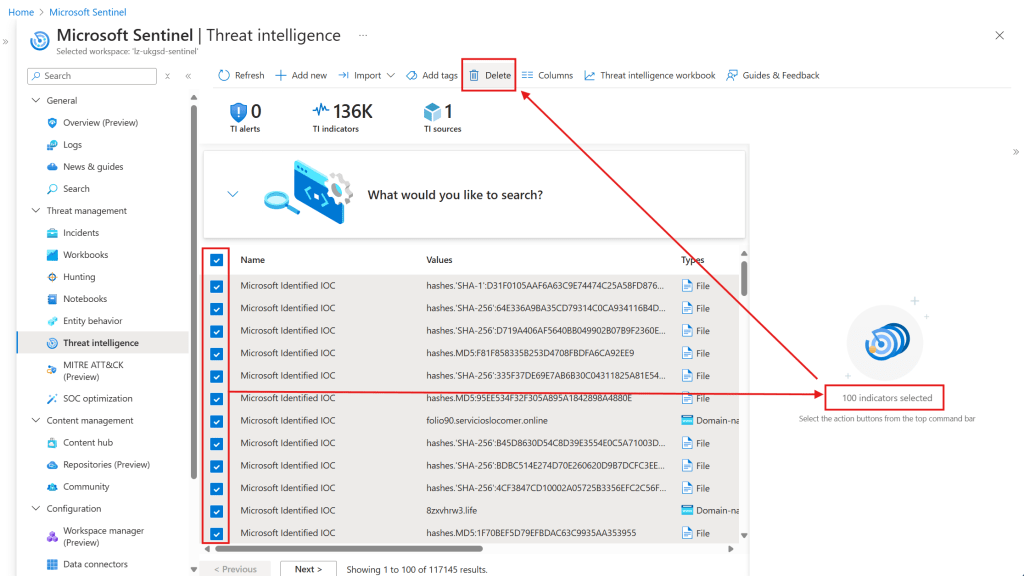
Now this is great if you have only a few to remove, or too much time on your hands, but ultimately we need to do this at scale via a script. Looking at the REST API, it will allow you to remove an indicator one at a time, all you need to do is provide the indicator resource Id and have the correct permissions. Below is a simple example with place holder parameters using PowerShell.
 $URI = https://management.azure.com/subscriptions/{subscriptionId}/resourceGroups/{resourceGroupName}/providers/Microsoft.OperationalInsights/workspaces/{workspaceName}/providers/Microsoft.SecurityInsights/threatIntelligence/main/indicators/{name}?api-version=2024-03-01

$Response = Invoke-AzRestMethod - URI $URI -Method Delete
Now running this at scale isn’t too hard, we can just get each threat indicator and then pipe it to remove each one? If only that were the case! We need to consider throttling, the number of indicators and how long each request takes. Lets start with the number of indicators. In my tiny lab environment I have 117,145 threat indicators, though in my customers they have 46,190,262. Somehow I think they have a few more than me.
Now if we look at the throttling, we can see that this year (2024) Microsoft have changed the throttling and token bucket algorithm. I won’t explain all the details here, just an overview. If you want the deeper details, please read the documentation here: https://learn.microsoft.com/en-us/azure/azure-resource-manager/management/request-limits-and-throttling. Back to the changes, the old algorithm limited the deletes to 15000 per hour per security principal per Azure Resource Manager Instance. This could be quite challenging to manage especially if your request is going to more than one Azure Resource Manager instance in the same region, either way the remaining limits were sent in the response.
For my environment and my customers, we have already been migrated to the new regional throttling and token bucket algorithm. This means, per region and per security principal, you start with a total number of deletes that can be performed at 200. For every delete request this value is decreased by 1, but for every second that passes, the total is refilled by 10 up to 200. This means if you perform 200 deletes in 1 second, it would take 20 seconds to refill back up to 200 and 1 second before you can do another 10 deletes. This effectively gives us a rate of 10 deletes per second per region per service principal, or 36,000 per hour.
Now I know that I can theoretically do 36,000 deletes per hour, it would only take my environment 3.25 hours to finish and my customers 53 days and 11 hours. This is no small amount of time! Running this number of deletes in serial in single threat was averaging about 1.6 seconds per delete during testing, which means my customers environment would take a whopping 855 days to finish if running non stop with no failures.
How I’ve tried to fix it
I haven’t tried to fix all these problems myself, as a Microsoft employee, I have raised this via the internal channels available to me to get this resolved on my customers behalf, but after all this is customer data, so no one in Microsoft has the ability to just access and remove customer data and I am not sure it’s possible with all the controls in place, but it is way outside of my job role, so all I can do is ask.
I’ve also raised this a feature ask with the relevant business justification to try get relevant product group to build a better experience for this. I do think we need better ways of managing this data at scale.
While I have done all this, I am not just going to sit on my hands and let someone else fix it. I did find Microsoft-Sentinel-Bulk-Delete-Threat-Indicator script by Sreedhar Ande, but this script still has the limitations of processing the deletions in serial, so you will have a birthday or two before all the indicators in this customers environment are deleted.Now I am no expert at software programming to the level we have within Microsoft, but I am always learning. This has given me an excuse to start learning multi-threading in my scripts.
I have written a small PowerShell module which utilises multi threading to attempts to perform 10 deletes per second without getting throttled, my current testing is averaging 26 minutes to delete 10,000 indicators (about 6.35 per second), meaning it would only take 84 days for a single service principal working non-stop to remove all the indicators, which isn’t quite 53 days, but far better that 855! It would be possible to scale this up with multiple security principals, but there is only so much I can do at this stage. We would have to factor in getting the threat indicator names and ensuring the removal jobs are all reading from the same queue, most likely across multiple compute resource. I have thought about scaling it with some a few Azure functions, but that would involve more time than I have now.
Setup
As this is a PowerShell script, you will need PowerShell. Some of the functionality in the script was deployed in PowerShell 6. I’ve built this script using PowerShell 7.4.4 Core. I haven’t tested all versions or checked backwards compatibility, so if in doubt, get the latest.
First of all, download and install the most recent version of the PowerShell module from the GitHub repo, If you haven’t downloaded it, the link is at the top of the blog, make sure you download the latest version. Extract the files and copy the folder to one of the paths listed in $ENV:PSModulePath. I would recommend the module path for just the specific user who will be using the module. I’ve extracted the zip file and copied the folder inside to C:\Users\aliross\Documents\PowerShell\Modules\ .

Next, check you have the Az.Accounts PowerShell module installed, using the next command:
Get-Module Az.Accounts -ListAvailable

If you don’t have it installed, you will need to download and install it. The easiest way is within PowerShell using:
Install-Module Az.Accounts
You may be prompted if the repository is listed as untrusted, select Yes or alternatively use Find-Module Az.Accounts to review the module metadata before installation.
The next step is to sign in with an account that has permissions to delete threat indicators. Microsoft Sentinel contributor built in role can achieve this. The account used can be a user, service principal or even a managed identity if running the script from within an Azure resource, like Azure functions. For my testing, I have been using a service principal. Examples on how to use the different account types can be found in the documentation for Connect-AzAccount.

In my example above I’ve already populated variables for the Subscription Id, Resource Group Name and Workspace Name so that I do not need to get them each time. The Subscription Id has also been used in Connect-AzAccount to automatically set the default context, though it isn’t needed for the SentinelThreatIntelligence module.
Next, I would advise getting some indicators and validating your query for the indicators you wish to delete. I have ensured that all the filter parameters for the API have been included as listed here. https://learn.microsoft.com/en-us/rest/api/securityinsights/threat-intelligence-indicator/query-indicators?view=rest-securityinsights-2024-03-01&tabs=HTTP#request-body
In my query I am getting all the indicators and storing them in the $Indicators variable, this is because the response will return the skip token and throttling metrics (if the parameter is selected). This is because the query will default to returning 100 indicators at a time, and returning the skip token lets you query the next set of data if you are trying to return more indicators.
 $Indicators = Get-ThreatIndicatorsQuery `
    -SubscriptionId $SubscriptionId `
    -ResourceGroupName $ResourceGroupName `
    -WorkspaceName $WorkspaceName

$Indicators.Indicators | select -First 2

Once you are happy with the query, time to start deleting the indicators! Most of the the parameters are the same between the functions Get-ThreatIndicatorsQuery and Remove-ThreatIndicatorsQuery. I did this for simplicity when switching between the Get and Remove options. The parameters for both functions are listed below.
- GET = Get-ThreatIndicatorsQuery
- REMOVE = Remove-ThreatIndicatorsQuery
| Parameter | Mandatory | Function(s) | Description | Default |
| SubscriptionId | True | GET REMOVE | Unique Identifier of the workspace subscription | null |
| ResourceGroupName | True | GET REMOVE | Name of the workspace resource group | null |
| Workspace | True | GET REMOVE | Name of the Sentinel Workspace | null |
| Ids | False | GET REMOVE | String array of Ids of the threat indicators | null |
| IncludeDisabled | false | GET REMOVE | Specifies whether to include disabled indicators | false |
| Keywords | false | GET REMOVE | String array of keywords when searching indicators | null |
| MinConfidence | false | GET REMOVE | The minimum confidence level (0 – 100) | null |
| MaxConfidence | false | GET REMOVE | The maximum confidence level (0 – 100) | null |
| MinValidUntil | false | GET REMOVE | Minimum valid until Date string in the ISO 8601. | null |
| MaxValidUntil | false | GET REMOVE | Maximum valid until Date string in the ISO 8601. | null |
| PageSize | false | GET | The number of indicators to return per request | 100 |
| PatternTypes | false | GET REMOVE | The indicator pattern types | null |
| SortByColumn | false | GET REMOVE | The column to sort the results by. This must be used with SortByOrder | null |
| SortByOrder | false | GET REMOVE | The order in which to arrange the indicators using the SortByColumn. Valid values are “ascending”, “descending”, and “unsorted” | null |
| ThreatTypes | false | GET REMOVE | Specifies the threat types for threat intelligence indicators | null |
| Throttle | false | REMOVE | The number of concurrent background removal jobs | 15 |
| ShowProgress | false | REMOVE | Switch parameter to provide a visual output of the script progress | false |
| TotalToDelete | false | REMOVE | Specify the limit of indicators to be deleted. By default the value is -1, which is all. | -1 |
Running the function.
Simply execute function with the required and optional parameters. If you’ve signed in with Connect-AzAccount and have the correct permission, then there is nothing else to do. It will take a few seconds for the progress bar to load as the background jobs are starting up. Once they have started up and indicators start processing, the progress bar will become visible if you have used the -ShowProgress switch parameter.
Remove-ThreatIndicatorsQuery `
     -SubscriptionId $SubscriptionId `
     -ResourceGroupName $ResourceGroupName `
     -WorkspaceName $WorkspaceName `
     -ShowProgress

Verifying
I left my script running for about 9 hours and I was pleasantly surprised to see the script had completed. I reran the Get-ThreatIndicatorsQuery and no indicators were returned, I also ran Get-azSentinelThreatIntelligenceIndicatorMetric from the module Az.SecurityInsights and this also returned zero metrics and finally I checked the portal

If querying the logs, you will see 1 final record for each indicator, this will be the last update of each indicator, marking the column Active as false. These will be purged as per your retention period, though if you are doing a full clean-up, you can just reduce the retention period to purge it out quicker.
Troubleshooting
Because I am a human, the script is littered with Debug and Verbose outputs to help find out what was wanting to make me throw the computer out the window. If the script is failing or you want to see more, use the -Verbose and -Debug common parameters.
By using these switches, the background jobs will not be removed and they produces ALOT of data, I would recommend only using these with the -TotalToDelete parameter to avoid you running out of memory.
To get the output of each job, run the following:
Start-Transcript
Get-Job | Receive-Job -Wait -AutoRemoveJob
Stop-Transcript
If you don’t want to get the Job output, then just stop and remove the jobs by running the below. (You can also just close the PowerShell session as well)
$Jobs = Get-Job
$Jobs | Stop-Job
$Jobs | Remove-Jobs
Query Parameter failures
When testing, I have seen some parameters fail, such as -Keywords. The Microsoft Az.SecurityInsights module has Invoke-AzSentinelThreatIntelligenceIndicatorQuery, which has the most of the same parameters and is also failing, so I’ve surmised it’s a back end issue, but if you are unsure, review the debugging.
Considerations
When you update or delete an indicator, that record will be ingested into the ThreatIntelligenceIndicators table. If you are doing a clear out of indicators, consider reducing the retention to 14 days for this table so you are not paying for the retention beyond 90 days. Just note this will also purge any older data as well, so think twice before changing it.
Furthermore if you are using middleware like the Malware Information Sharing Platform (MISP)
Summary
Removing threat intelligence at scale is no quick task. This module will allow you to delete indicators much faster than the existing ones out there, but there is definitely room to improve, with scaling across multiple security principals to get around the throttling.
I do feel we need to have a better feature for this, so please submit your feedback here. I’ve found a feedback post that someone has already requested, so please upvote it if you feel like it is necessary. https://feedback.azure.com/d365community/idea/031fb021-b791-ed11-a81b-000d3ae49307
Alistair
 The Cloud Brain Dump - By TheAlistairRoss