
The short version
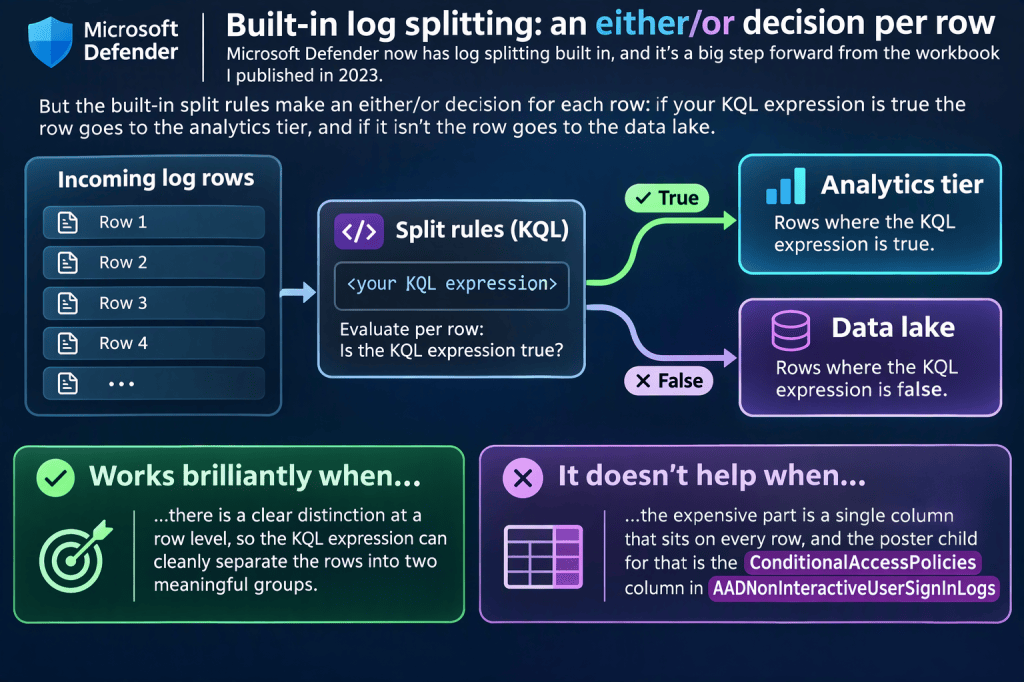
Microsoft Defender now has log splitting built in, and it is a big step forward from the workbook I published in 2023. But the built-in split rules make an either/or decision for each row: if your KQL expression is true the row goes to the analytics tier, and if it isn’t the row goes to the data lake. That works brilliantly for scenarios where there is a clear distinction at a row level. It does nothing for the tables where the expensive part is a single column that sits on every row, and the poster child for that is the ConditionalAccessPolicies column in AADNonInteractiveUserSignInLogs.
In this post I use the Defender UI to build the data lake table and the data collection rule (DCR) plumbing for me, then make a small JSON change so that the heavy column goes to the data lake and everything else stays in analytics. For one UK customer I worked with this week, that one column costs roughly £24,900 a year (UK South pay-as-you-go retail prices). Kept in the data lake instead, the same data costs about £1,400 a year with normal investigative use, and about £5,400 a year even if you scanned the entire year of data ten times every month. You keep the data, your detections keep working, and the bill drops.
A quick recap
Back in October 2023 I wrote about a log splitting tool: a workbook that generated a custom table and a DCR so you could send the high-value part of a log source to an analytics table and the rest to a cheaper Basic logs table. It worked, but it meant creating custom tables, copying schemas and hand-editing ARM templates.
The product has moved on a lot since then. Filter and split rules are now built into the Defender portal, the Microsoft Sentinel data lake has replaced the Basic and Auxiliary logs conversation and long-term retention now lands in the data lake by default as well.
The built-in split rule is simple. You give it a KQL condition. Rows that match go to the analytics tier (and are mirrored to the data lake), and rows that don’t match go only to the data lake, in a separate table with a _SPLT suffix. It’s a routing decision for the whole row.
The gap: it’s not the rows, it’s the column
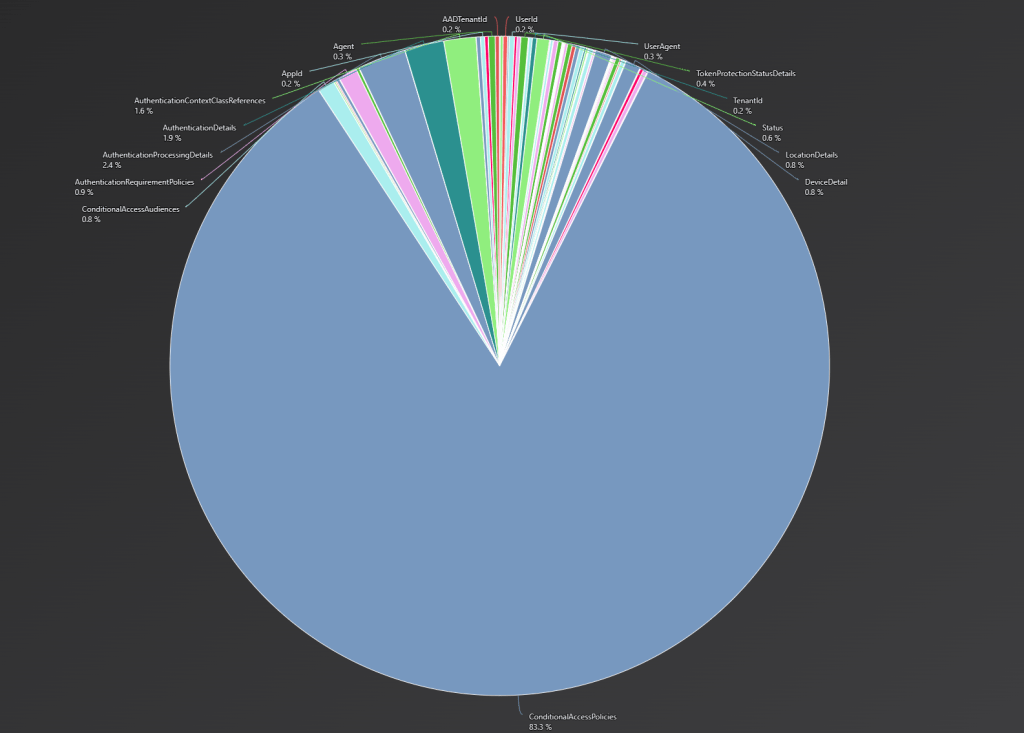
Every sign-in recorded in AADNonInteractiveUserSignInLogs carries an evaluation record for every Conditional Access policy in your tenant, whether or not the policy applied. Not applied, report-only, not satisfied, disabled: they’re all written into the ConditionalAccessPolicies column, every single time. Non-interactive sign-ins are the background token activity you never see (Outlook opening, single sign-on and so on), and you typically get 10 to 20 of them for every interactive sign-in. I’ve seen one customer generate over a billion non-interactive sign-ins in a single day.
In my 2023 workshop the column added roughly 226 bytes per event with one policy, and about 24 KB per event for a customer with 109 policies. This week I ran the numbers again with a UK customer using the Sentinel optimisation workbook and a column-size query against their workspace:
| Measure (last 30 days) | Value |
|---|---|
| AADNonInteractiveUserSignInLogs share of total workspace ingestion | 43.1% |
| ConditionalAccessPolicies share of that table | 82.3% |
| ConditionalAccessPolicies volume | ~502 GB (about 16.7 GB a day) |
| Whole AADNonInteractiveUserSignInLogs table | ~610 GB (about 20.3 GB a day) |
| Everything else in the table | about 3.6 GB a day |
| Conditional Access policies in the tenant | 52 |
So more than a third of this customer’s entire Sentinel ingestion was one column in one table. A row-based split can’t fix that, because the column is on every row. Send the rows to the data lake and you lose near-real-time detections on non-interactive sign-ins. Keep them in analytics and you pay analytics prices for the column.
Your options, honestly
| Option | What happens to the Conditional Access data | Verdict |
|---|---|---|
| Leave it alone | Kept in analytics at full price | Expensive for data most SOCs rarely query |
| Filter it out (project-away) | Dropped at ingestion and gone for good | Cheapest, but you lose the evidence |
| Built-in split rule | Whole rows go to analytics or data lake | Doesn’t help, the column is on every row |
| Move the whole table to the data lake | Kept, but no near-real-time detections on any of it | Too big a trade-off for sign-in data |
| Column split (this post) | Column kept in the data lake, rest of the table stays in analytics | Keeps detections and the data, at data lake prices |
SOC optimisation in Defender will rightly flag this column as large and unused, and the simplest recommendation is to project it away. If you genuinely don’t need it, do that. But plenty of organisations do want it: for Conditional Access troubleshooting, for checking what a report-only policy would have done, for forensic timelines, or because a regulator or auditor expects the full sign-in record. I’m not saying get rid of it. I’m saying put it in the tier that matches its value.
Is the column worth keeping in analytics?
The question to ask is whether the column earns its place in the analytics tier. Last time I reviewed the built-in content, one analytics rule used it: an informational detection for a sign-in that got through even though a Conditional Access policy wasn’t satisfied. If you run that rule, you have to decide whether it’s worth hundreds of gigabytes a month. Check your own detections, hunting queries and workbooks for ConditionalAccessPolicies before you change anything.
Two queries help here. The first estimates how much each column contributes to the table, by sampling rows and scaling by the total row count (calculating the size of every column across a billion rows a day is not going to happen).
let EvaluateTable = (tableName:string, startTime:datetime = datetime(null) , endTime:datetime = datetime(null), sampleSize: long = long(null)){ let vStartTime = iff(isnull(startTime), ago(1d), startTime); let vEndTime = iff(isnull(endTime), now(), endTime); let vSampleSize = iif(isnull(sampleSize), 1000, sampleSize); let countOfLogs = toscalar(table(tableName) | where TimeGenerated between (vStartTime .. vEndTime) | count); table(tableName) | where TimeGenerated between (vStartTime .. vEndTime) | take vSampleSize | evaluate narrow() | summarize Average_Size_Bytes = avg(estimate_data_size(Value)) by Column | extend Estimate_Total_Size_Bytes = Average_Size_Bytes * countOfLogs | extend Total_Log_Count = countOfLogs | extend TableName = tableName | project TableName, Column, Total_Log_Count, Average_Size_Bytes = round(Average_Size_Bytes, 0), round(Estimate_Total_Size_Bytes, 0)};EvaluateTable('AADNonInteractiveUserSignInLogs')| project Column, Average_Size_Bytes| render piechart
The second tells you who actually queries the column. It needs the LAQueryLogs table, so turn on the workspace diagnostic setting if you haven’t already. Yes, it costs a little to collect, and it tells you who is querying what.
// Who has queried the ConditionalAccessPolicies column in the last 90 days?LAQueryLogs| where TimeGenerated > ago(90d)| where QueryText has "AADNonInteractiveUserSignInLogs" and QueryText has "ConditionalAccessPolicies"| summarize Queries = count(), LastRun = max(TimeGenerated) by AADEmail, RequestClientApp| order by Queries desc
And please don’t go the other way and over-optimise. I’ve seen teams start dropping columns that hold a single word. That is like cleaning your house with a toothbrush and a magnifying glass. Sometimes you can go overkill when all your need is vacuum around the house. Go after the big wins.
The approach: let Defender build the plumbing
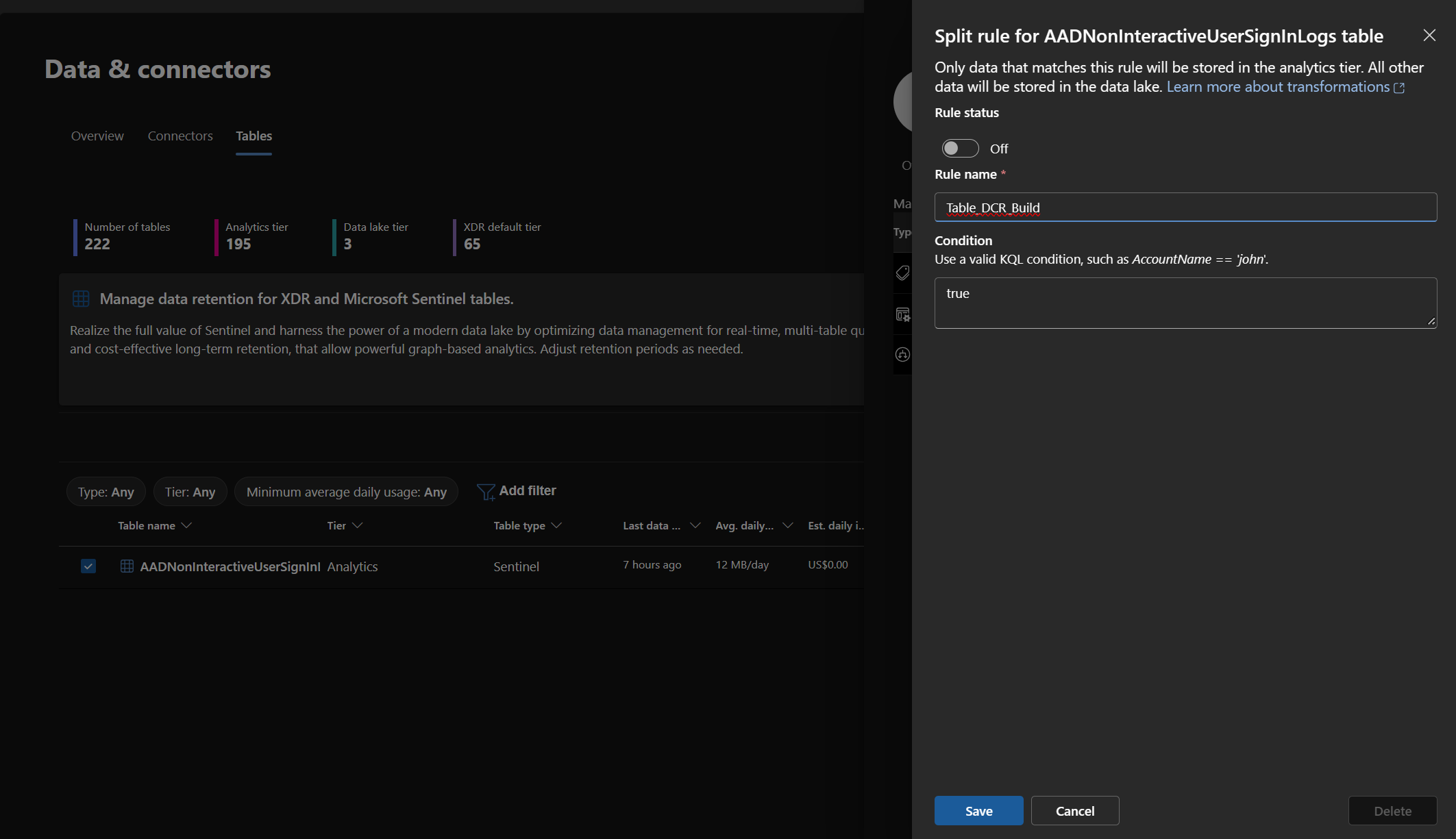
The trick is to let the Defender UI do the fiddly parts, then change one thing. I create a split rule whose condition is simply true. Because every row matches, all the data still goes to analytics and nothing goes to the data lake, so the rule changes nothing about where data lands. What it does do is make Defender create the _SPLT_CL data lake table with the right schema and the right plan, and add both data flows to the workspace transformation DCR. I then edit those two data flows so they split by column instead of by row.
The end state looks like this:
| Data flow | Destination table | Rows | Columns | Tier |
|---|---|---|---|---|
| 1 | AADNonInteractiveUserSignInLogs | All | Everything except ConditionalAccessPolicies | Analytics |
| 2 | AADNonInteractiveUserSignInLogs_SPLT_CL | All | TimeGenerated, AADTenantId, CorrelationId, UserId, ConditionalAccessPolicies | Data lake |
Why do it this way rather than building it all by hand like in 2023?
- Defender creates the data lake table for you, with a schema that matches the original table, so there are no custom table definitions to write or maintain.
- The DCR already exists and is already attached to the workspace, so you change two transformKql values rather than author a DCR.
- Both tables are queried from Advanced hunting with the same KQL, and you can join analytics and data lake data in one query with no search or restore jobs.
- It coexists with Defender’s own split rules, so the SOC can still use the UI for row-based splits later (more on that below).
- Your detections keep every other column in near real time.
Step by step
I tested this on a Microsoft Sentinel workspace onboarded to the Defender portal, with the data lake enabled. The split rule needs both of those. You also need Data (manage) permissions in Defender, Log Analytics Contributor on the workspace, and rights to edit the workspace transformation DCR for the JSON step.
Step 1: Find the table in Defender
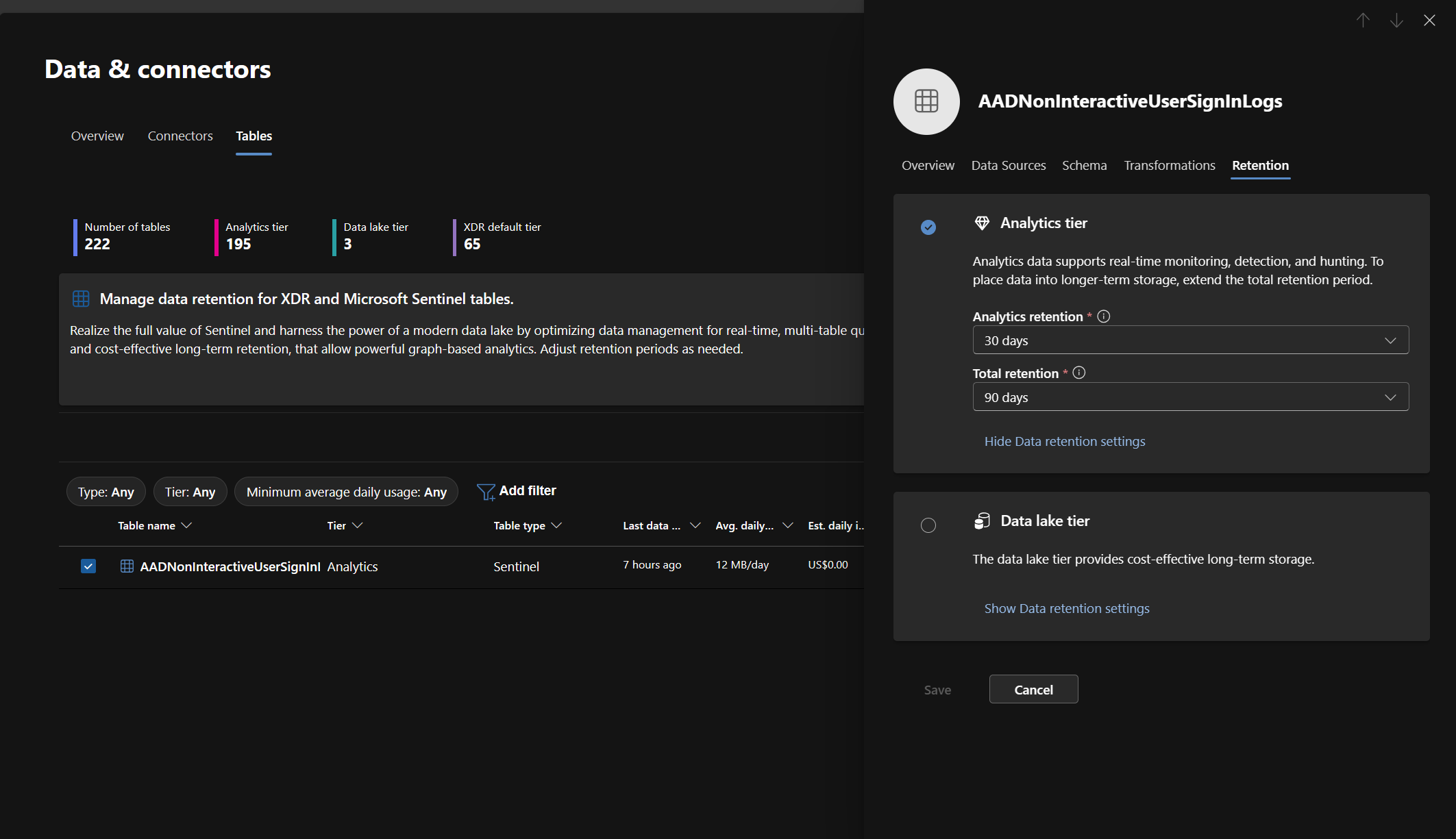
In the Defender portal, go to Data & connectors, select Tables and open AADNonInteractiveUserSignInLogs. In my lab it is in the analytics tier with 30 days of analytics retention and 90 days total (Just to demo Data Lake Retention). The Transformations tab is where the split rule lives.
Step 2: Create a placeholder split rule
On the Transformations tab, add a Split rule. I named mine Table_DCR_Build so it’s obvious what it’s for, and set the condition to true. Read the panel text carefully: only data that matches the rule is stored in the analytics tier, and everything else goes to the data lake. With a condition of true, everything matches, so nothing moves yet.
Step 3: Check what Defender built
Back in Tables, the original table now shows its tier as Split, and a second table appears underneath it in the Data lake tier with a type of Custom. The Transformations tab lists the split rule.
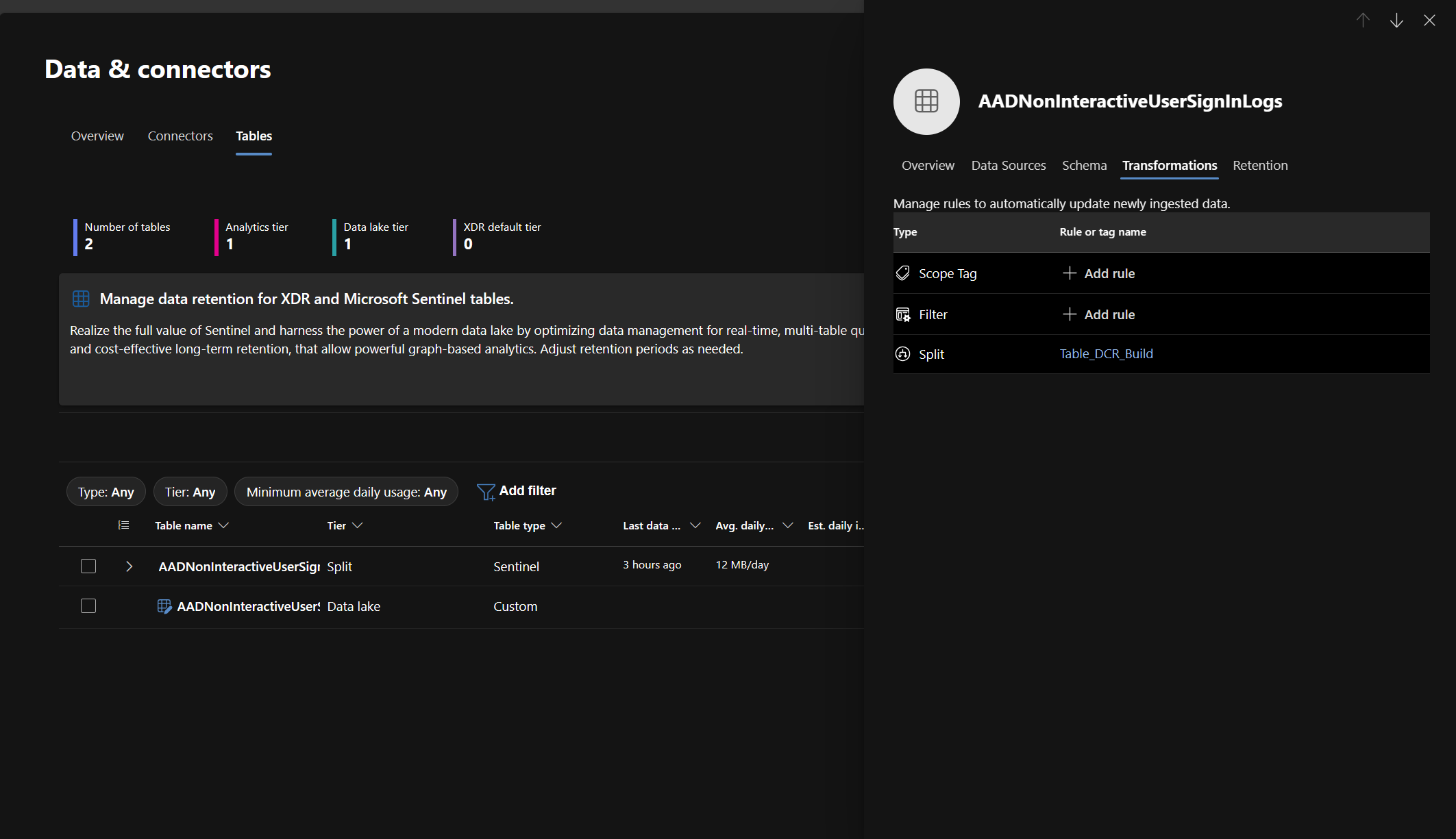
Step 4: See the new table in the workspace
In the Azure portal, open the Log Analytics workspace and go to Tables. You’ll find AADNonInteractiveUserSignInLogs_SPLT_CL as a custom table on the Auxiliary / Lake plan. Defender built it with the same schema as the original, so every column, including ConditionalAccessPolicies, already exists.
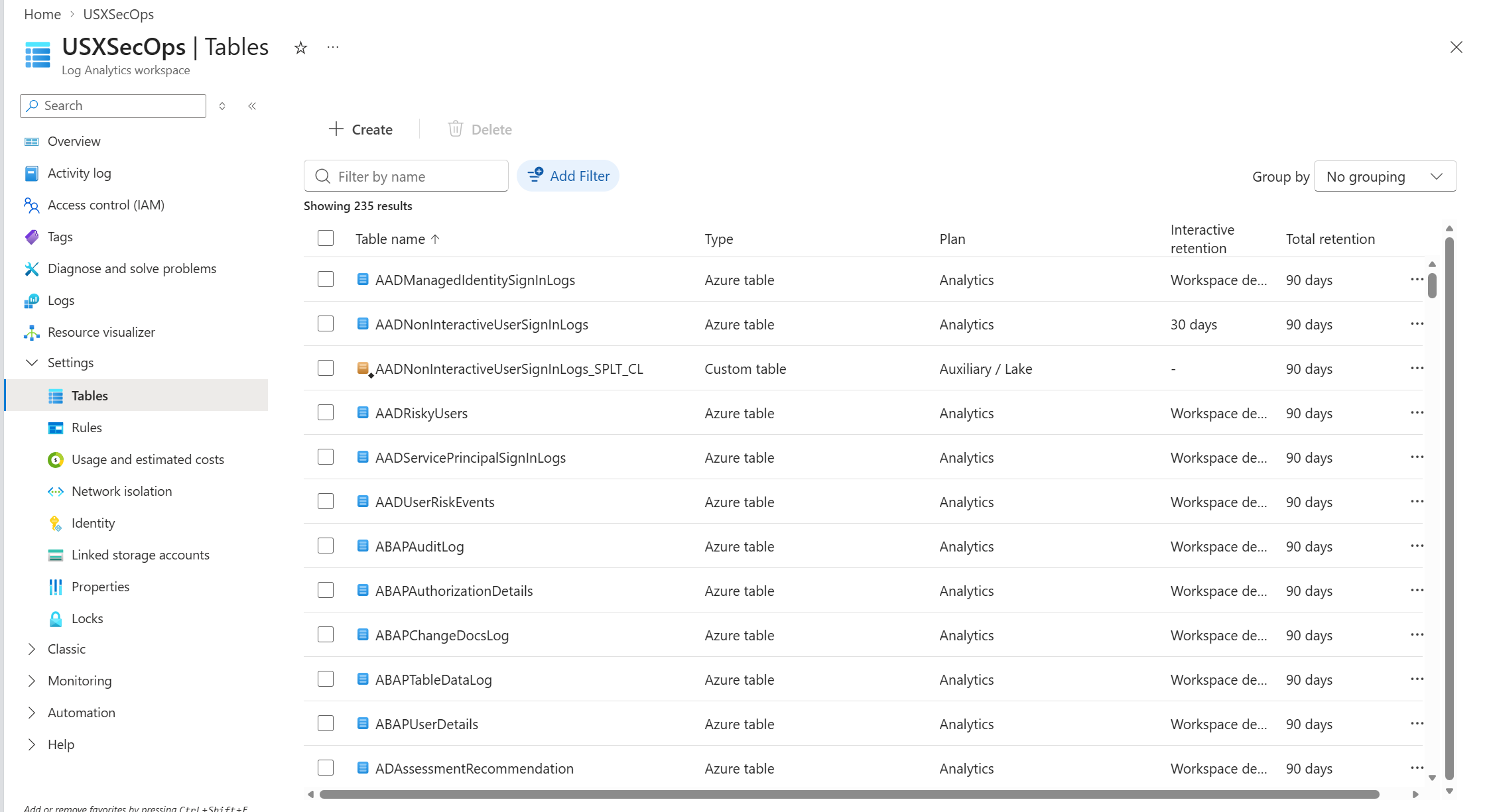
Step 5: Look at the DCR Defender changed
AADNonInteractiveUserSignInLogs arrives through diagnostic settings, so its transformations live in the workspace transformation DCR (named ws-dcr- followed by the workspace ID). Open it and go to Data sources. Defender has added two entries for this table, each wrapping its logic between // [START: SplitLogic] and // [END: SplitLogic] comments. The analytics flow uses where true, and the data lake flow uses where not(true), which sends nothing.
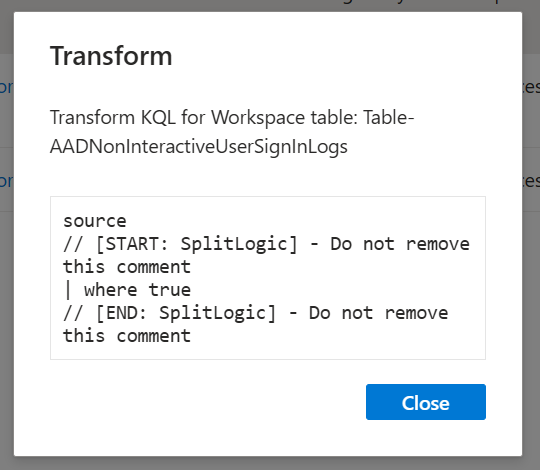
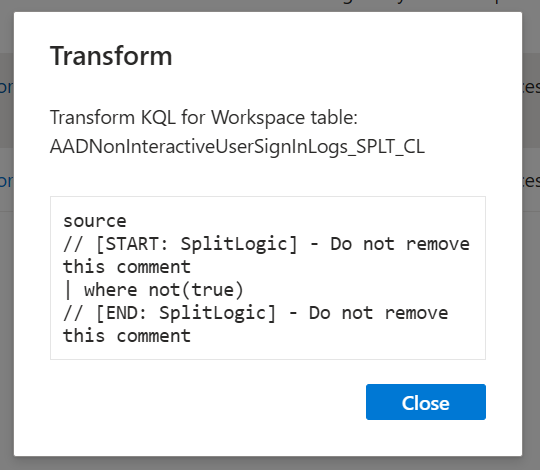
Don’t leave the placeholder rule in this state for long. As I read the billing documentation, data processing for a data lake flow is charged on the data entering the transformation, not what comes out of it, so a flow that keeps nothing could still be processing the whole stream.
Step 6: Decide which columns go to the data lake
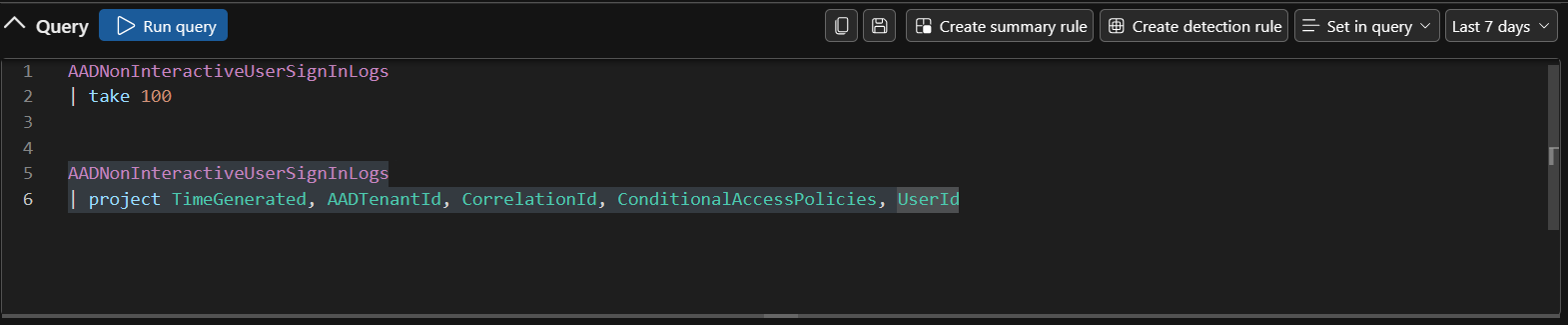
The data lake copy needs the heavy column plus enough to join it back to the analytics row later. I test the projection in Advanced hunting first: TimeGenerated, AADTenantId, CorrelationId and UserId as the join keys, plus ConditionalAccessPolicies. This does mean duplication of a few small columns, but the cost savings outweighs the duplication.
Step 7: Edit the DCR
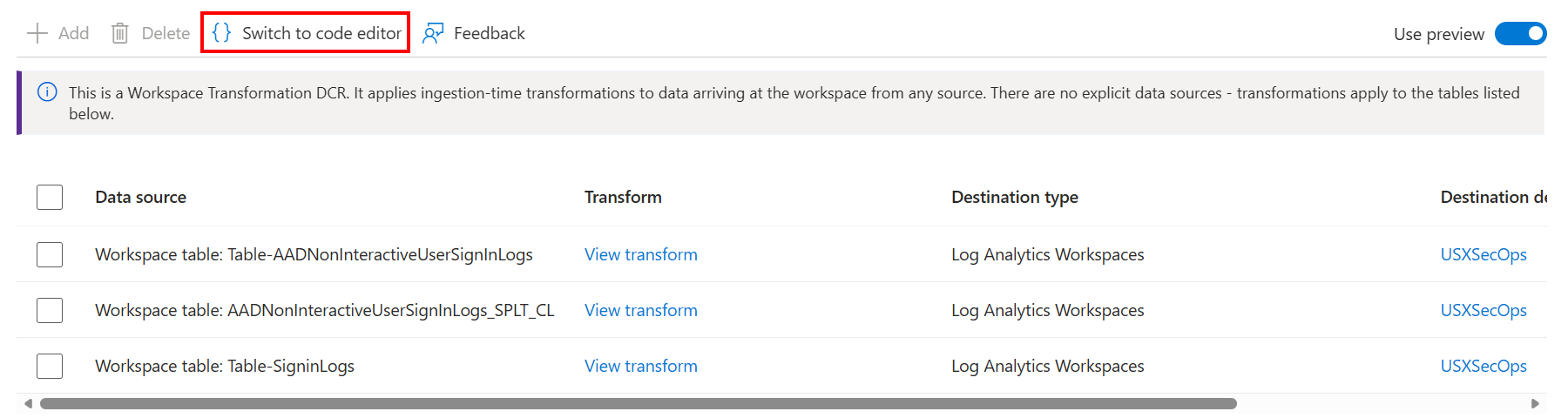
On the DCR’s Data sources page, select Switch to code editor. (You can also use Export template, then Deploy, then Edit template, which is the route I used in previous years.)
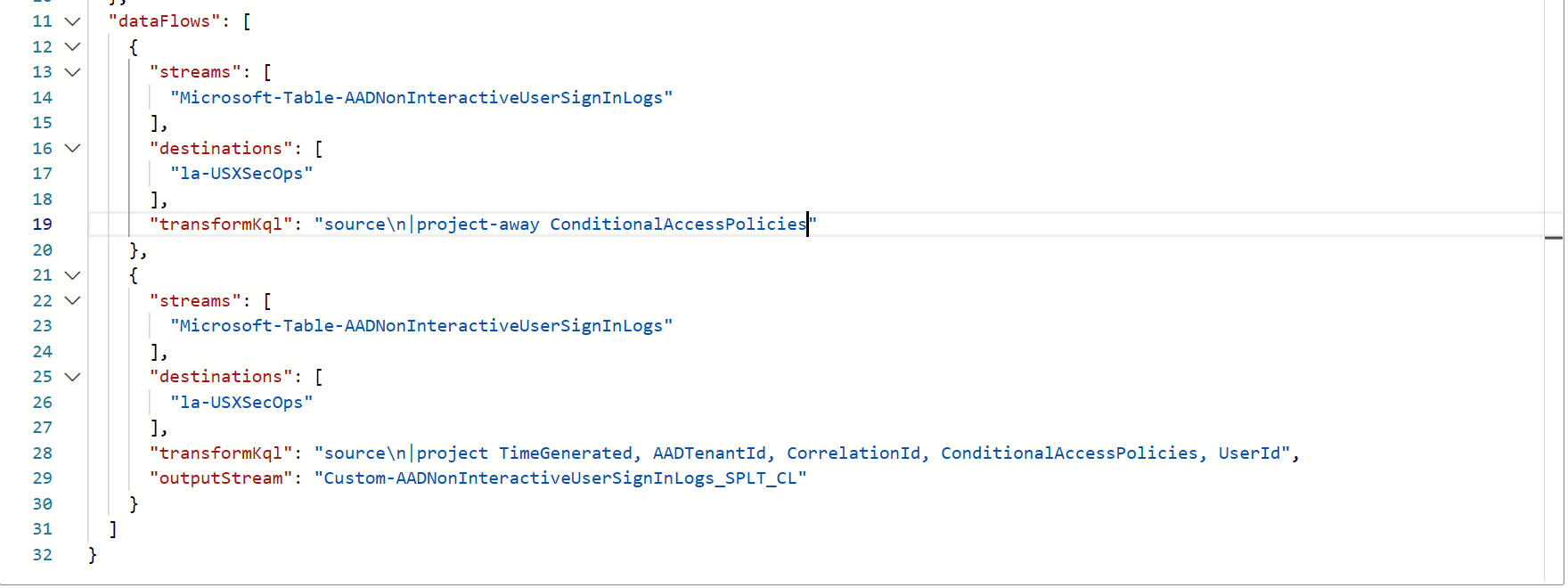
Replace the two Defender-generated transforms for this table so the dataFlows section looks like this, then save. Use your own destination name in place of la-USXSecOps, and leave any data flows for other tables exactly as they are.
"dataFlows": [ { "streams": [ "Microsoft-Table-AADNonInteractiveUserSignInLogs" ], "destinations": [ "la-USXSecOps" ], "transformKql": "source\n| project-away ConditionalAccessPolicies" }, { "streams": [ "Microsoft-Table-AADNonInteractiveUserSignInLogs" ], "destinations": [ "la-USXSecOps" ], "transformKql": "source\n| project TimeGenerated, AADTenantId, CorrelationId, ConditionalAccessPolicies, UserId", "outputStream": "Custom-AADNonInteractiveUserSignInLogs_SPLT_CL" }]
The first flow has no outputStream, so it writes to the original analytics table, minus the column. The second flow reads the same stream and writes only the join keys and the column to the data lake table. Make sure the two transforms are the inverse of each other for the column you care about, otherwise you’ll still be ingesting it into analytics and paying for it twice.
Step 8: Set retention and validate
Set the total retention on AADNonInteractiveUserSignInLogs_SPLT_CL to whatever you need (I use a year in the costings below). Defender lets you set it separately from the analytics table. Transformations can take up to an hour to take effect, so give it time, then query both tables and check that new analytics rows have an empty ConditionalAccessPolicies column and the data lake table is filling up with the column and its keys.
What happens if someone adds a split rule later?
This was the bit I really wanted to test, because someone in the SOC will inevitably open the table in Defender and add a split rule without knowing what’s in the DCR. So I did exactly that, then exported the DCR template to see what Defender had done.
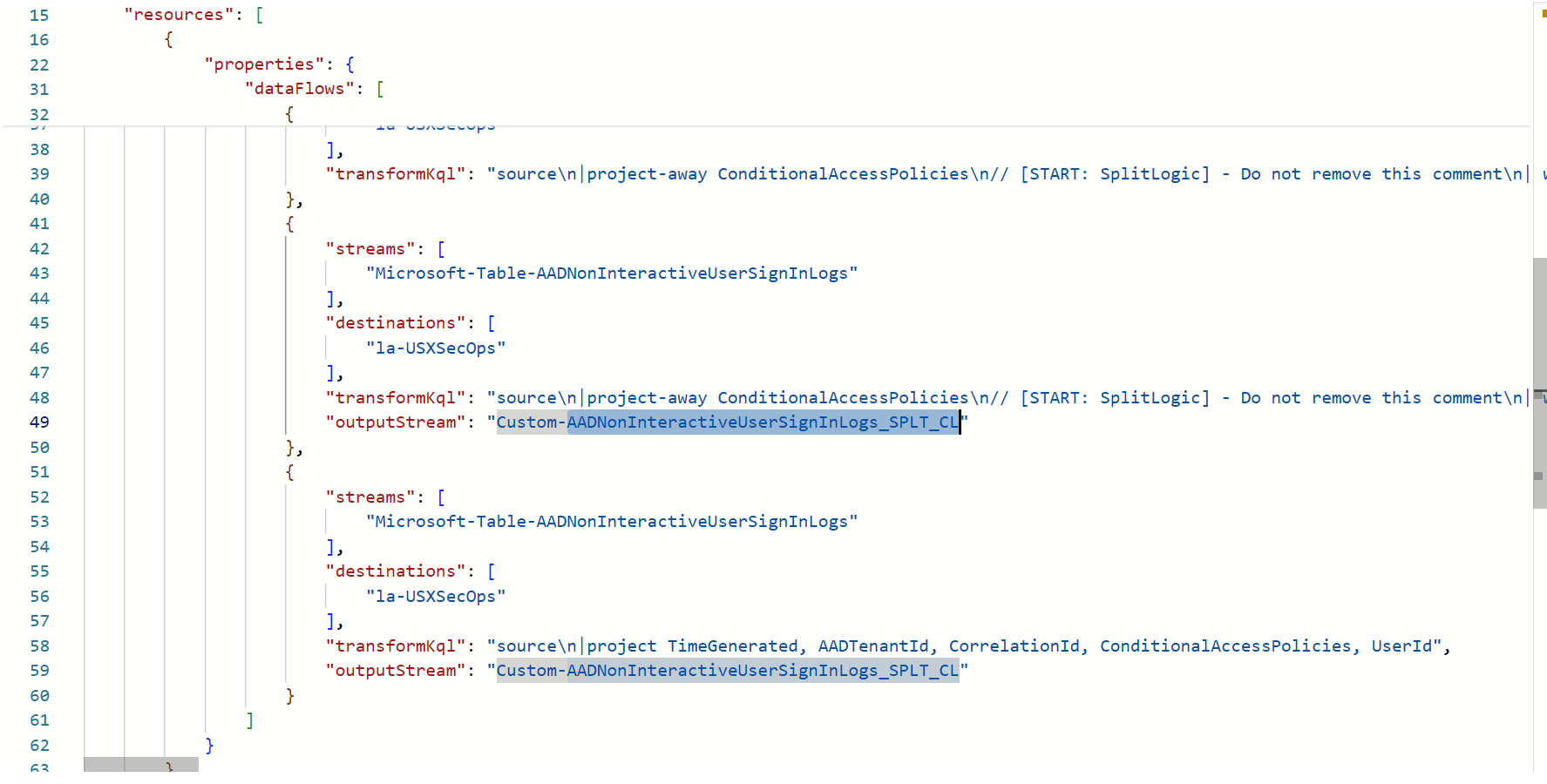
Defender behaved well. It kept my project-away on the analytics flow and appended its own SplitLogic block after it. It created a new data lake flow that copied my project-away and added the inverse of the new condition, writing to the same _SPLT_CL table. And it left my column flow completely alone.
The result is a row split and a column split working together, with nothing lost:
- Rows that match the new condition go to analytics without the column.
- Rows that don’t match go to the data lake without the column.
- The column and its keys, for every row, still go to the data lake.
The thing to be aware of is that both kinds of record now land in the same AADNonInteractiveUserSignInLogs_SPLT_CL table. The column-split records have ConditionalAccessPolicies populated and most other columns empty, and the row-split records are the other way round, so filter on isnotempty(ConditionalAccessPolicies) when you only want the column records.
I haven’t yet tested what deleting the split rule in Defender does to a hand-edited flow, so treat the DCR as code: export it, keep it in source control and check it after anyone changes the table’s transformation rules.
Putting it back together at query time
Analytics rules and near-real-time detections never read the data lake, which is the point: they keep running on everything except the column. When an analyst needs the Conditional Access detail for an investigation, they join the two tables in Advanced hunting. The data lake bills on the data your query scans, and it only reads the partitions in your time range, so always filter on TimeGenerated first and keep the window tight.
// Rebuild full sign-in records for one user and one hourlet Start = datetime(2026-11-17 18:00);let End = datetime(2026-11-17 19:00);let UPN = "user@contoso.com";AADNonInteractiveUserSignInLogs| where TimeGenerated between (Start .. End)| where UserPrincipalName =~ UPN| join kind=leftouter ( AADNonInteractiveUserSignInLogs_SPLT_CL | where TimeGenerated between (Start .. End) | where isnotempty(ConditionalAccessPolicies) | project TimeGenerated, CorrelationId, UserId, ConditionalAccessPolicies ) on TimeGenerated, CorrelationId, UserId| extend ConditionalAccessPolicies = ConditionalAccessPolicies1| project-away TimeGenerated1, CorrelationId1, UserId1, ConditionalAccessPolicies1
If you ever need the column back in analytics for a specific case, promote a slice of it with a KQL job rather than moving the whole table back.
The money
Now the bit everyone scrolls down to. All prices below are UK South retail pay-as-you-go rates in GBP from the Azure Retail Prices API, November 2026. They exclude discounts, commitment tiers, pre-purchase plans and the Microsoft 365 E5 data grant.
I’ve included both classic Microsoft Sentinel and the new Integrated Security Operations Center (ISOC) in Microsoft Defender, which went into public preview on 23 September 2026. ISOC has its own pay-as-you-go ingestion meter for data that isn’t included in the benefit, and Entra ID sign-in logs aren’t on the included list, so AADNonInteractiveUserSignInLogs is billable under both models.
| Meter (UK South, GBP) | Microsoft Sentinel | ISOC |
|---|---|---|
| Analytics ingestion (per GB) | £4.0450 | £2.1653 |
| Analytics retention beyond the included period (per GB per month) | £0.0977 | £0.0902 |
| Data lake ingestion (per GB) | £0.0470 | £0.0451 |
| Data processing (per GB) | £0.0940 | £0.0902 |
| Data lake storage (per GB per month, billed at 6:1 compression) | £0.0180 | £0.0180 |
| Data lake query (per GB analysed) | £0.0047 | £0.0045 |
Prices correct as of November 2026. To see current retail prices, refer to the pricing API and documentation
The scenario is the ConditionalAccessPolicies column only, at 16.7 GB a day, kept for one year. A few assumptions sit behind the numbers:
- The analytics option keeps 90 days in analytics and the rest of the year in the data lake mirror, billed as data lake storage.
- The data lake copy is budgeted at 20 GB a day, as I did in the session, to cover the join keys with some headroom.
- Data processing is charged on the full 20.3 GB a day entering the data lake transformation.
- Storage is the steady state once a full year has built up.
- Targeted hunting means 50 lookups a month, each scanning one day of the data lake table. The worst case is 10 scans of the entire year every month.
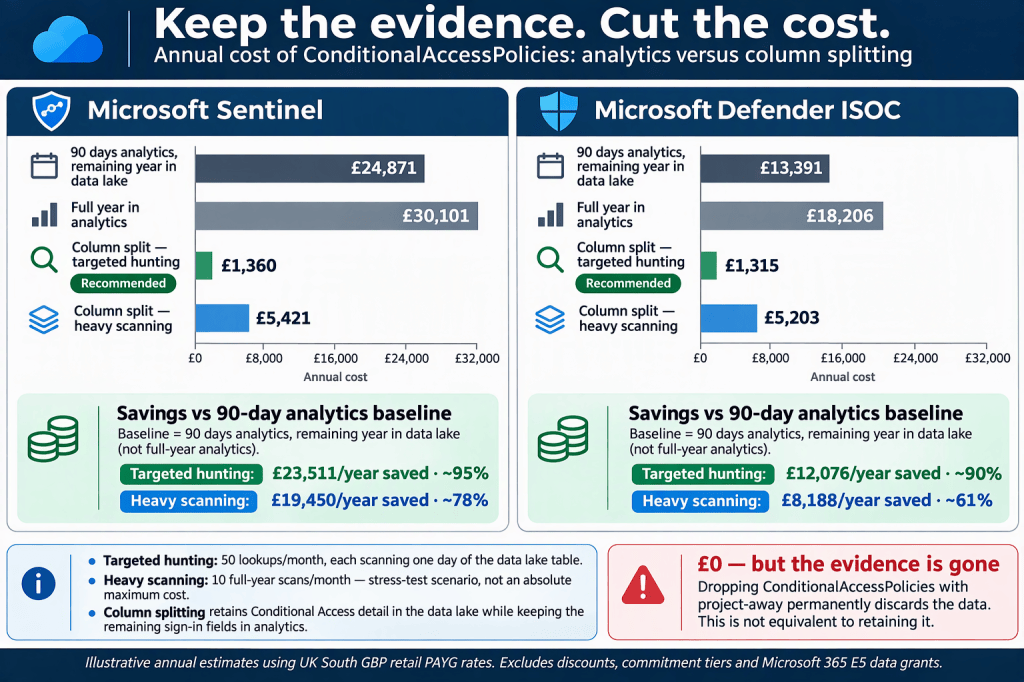
For Microsoft Sentinel, the column-split cost breaks down as about £698 a year in processing, £343 in data lake ingestion and £263 in storage, plus queries. Scanning the entire year of the column once costs about £34, which is why I’m relaxed about query costs. If you find a threat in February, you query February, not the whole year.
Looking at the whole table, analytics ingestion for AADNonInteractiveUserSignInLogs drops from about £2,502 to about £443 a month on Sentinel (from about £1,339 to £237 on ISOC), an 82% cut, with the data lake copy costing around £109 a month before queries.
A few things change the maths in the real world:
- If you’re on a commitment tier, re-check which tier fits after the split. Pay as you go rates for Sentinel is vastly higher per GB than the commitment tier rates.
- On Microsoft Sentinel, the Microsoft 365 E5 data grant of up to 5 MB per user per day can cover some Entra ID sign-in data, so your effective analytics cost may be lower than list.
- ISOC doesn’t offer commitment tiers, Sentinel discounts don’t carry over, and the 5 MB per user per day benefit doesn’t apply to ISOC usage. ISOC’s analytics rate is still about 46% lower than Sentinel pay-as-you-go in UK South, which shrinks the saving in pounds but not the logic: the column still costs roughly ten times more in analytics than in the data lake.
So whichever model you’re on, the column split saves thousands a year on one column in one table, without throwing the data away. Saving money is always nice, but the real point is what you do with it. Plenty of customers I work with have left firewall, proxy or cloud logs out of Sentinel because of cost. The money you free up here can enable you to perform monitoring across systems that were previously cost prohibitive.
Things to watch
- You’re editing a DCR that Defender also manages. Document what you changed, keep the JSON in source control, and check it whenever someone touches the table’s transformation rules.
- Check every analytics rule, hunting query, workbook and playbook that uses ConditionalAccessPolicies on this table before you move the column. They will silently return empty values afterwards.
- The data lake table has its own retention. Set it deliberately, because it doesn’t inherit what you might expect from the analytics table.
- Advanced hunting detections don’t run on data lake data. That’s fine for this column, but it’s the reason the split has to be by column and not by table.
- Transformations can take up to an hour to apply. Don’t panic if the first queries still show the column in analytics.
- Some built-in Microsoft content and Copilot or agent experiences can only reason over the data they can reach. The data lake is still queryable, so the data isn’t lost to them, but keep that in mind when you decide what lives where.
- Always test first.
Wrapping up
The built-in split rules in Defender are the right default for most splitting scenarios, and I’d always start there. But when the cost lives in a column rather than in the rows, you don’t have to choose between paying analytics prices and throwing data away. Let Defender build the table and the plumbing, change two lines in the DCR, and put each column in the tier that matches its value.
If you try this on your own tables, or find a scenario where Defender does something unexpected with the DCR, let me know. I’ll update this post as the product evolves.
Learn more
- Transform data using filter and split in Microsoft Sentinel: https://learn.microsoft.com/en-us/azure/sentinel/transformation-filter-split
- Custom data ingestion and transformation in Microsoft Sentinel: https://learn.microsoft.com/en-us/azure/sentinel/data-transformation
- Plan costs and understand Microsoft Sentinel pricing and billing: https://learn.microsoft.com/en-us/azure/sentinel/billing
- Integrated Security Operations Center (ISOC) in Microsoft Defender: https://learn.microsoft.com/en-us/defender-xdr/isoc-overview
- Transition an existing Microsoft Sentinel deployment to ISOC: https://learn.microsoft.com/en-us/azure/sentinel/transition-existing-sentinel-deployment
- My original 2023 post, UPDATED: Log Splitting Tool: https://thealistairross.co.uk/2023/10/18/log-splitting-tool/
- The Cloud Brain Dump on GitHub: https://github.com/TheAlistairRoss/The-Cloud-Brain-Dump

